Licensing guide
Adding Camera Channels to an Existing exacqVision Server
More cameras on the same recorder do not mean new hardware or a new installation. You buy extra channels for the server, load one updated license and connect the cameras. Six steps, no IT background required.
Step 1
Read three values in the License box
Start the exacqVision Client – the program you watch the cameras in. Click the gear icon at the top left, pick your server in the tree, choose Configure System and open the System tab. The License box on the right shows:
- Licensed Edition – Professional or Enterprise, which decides the product code
- MAC Address – the server identifier; the Copy button avoids typos
- Licensed IP Cameras – channels you own and how many are in use
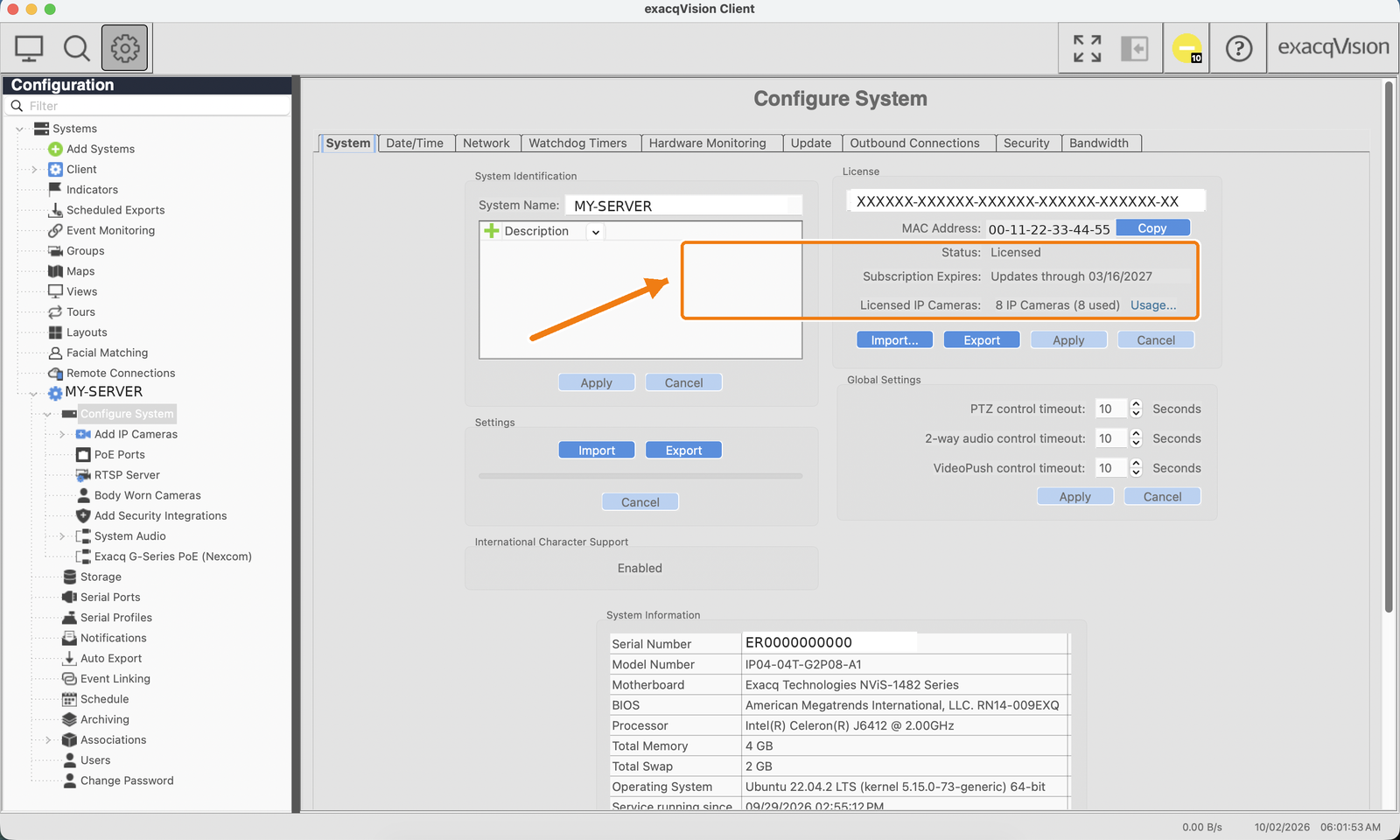
Can’t find it? Our MAC address guide has an annotated screenshot and a printable one-page PDF.
Step 2
Pick the code and the quantity
Each license is one camera channel, so the quantity equals the number of new cameras. The two codes are not interchangeable.
Step 3
Check the camera models
A license does not guarantee that a camera model is supported. Look the models up in Exacq’s camera compatibility list before buying them – or send us the model numbers.
Step 4
Order
On the product page enter the MAC address from step 1, the quantity and your e-mail, then choose card payment or bank transfer. Every order is confirmed by e-mail, with an invoice for your records.
Step 5
Load the new license
Camera channels are sent by e-mail right after payment: a key and a .key file showing the new total number of cameras. Paste the key, import the file or activate online – it takes about a minute:
→ Activation guide with screenshots
The server keeps recording; no restart and no reinstall.
Step 6
Confirm and connect the cameras
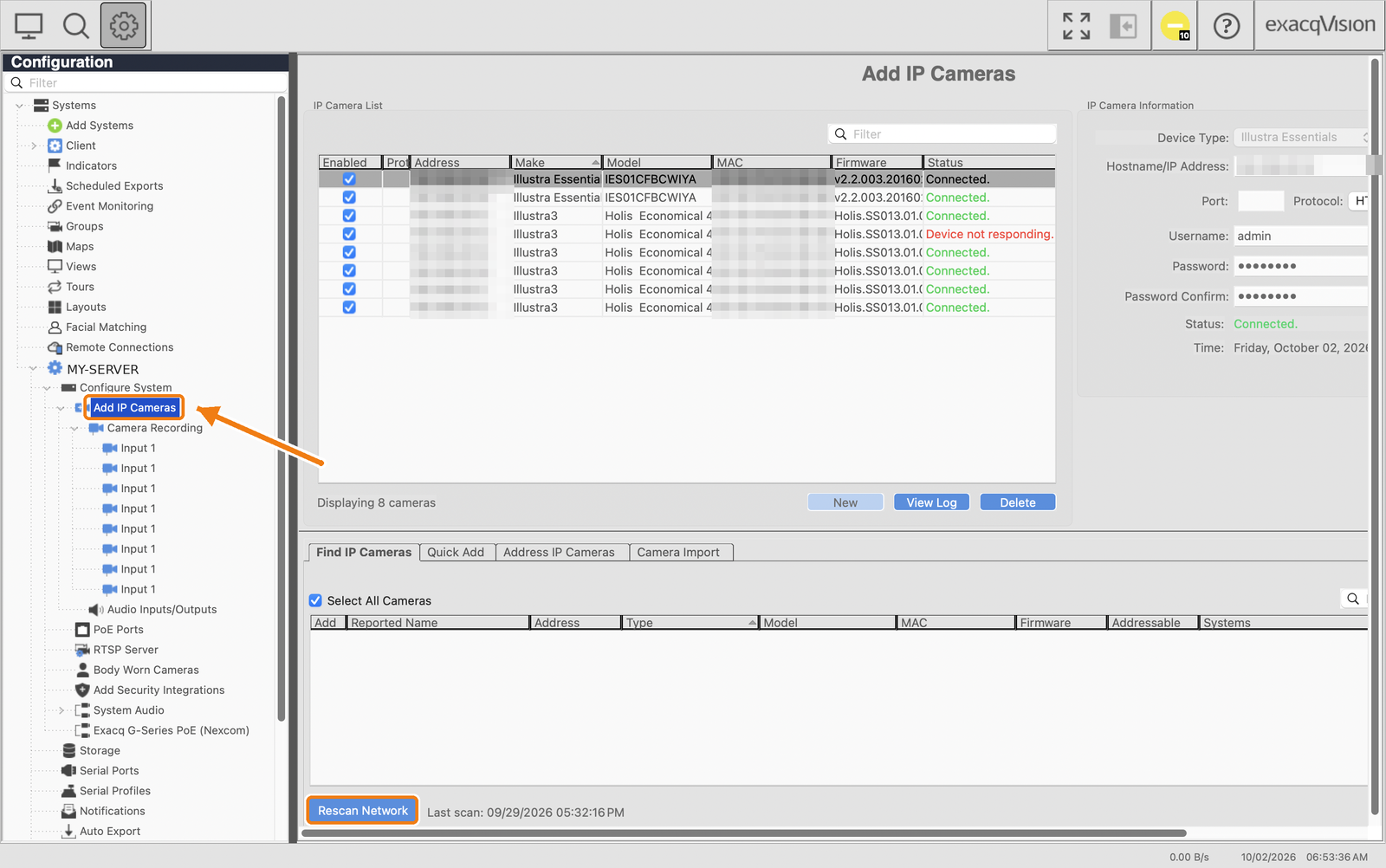
The System tab should now show the new total under Licensed IP Cameras. Go to Configure System → Add IP Cameras, press Rescan Network (or use Quick Add), tick the new cameras and connect them.
Questions and answers
Can EVIP-01 and EVENIP-01 be combined?
No. Use the code that matches the edition in the License box.
Do I need one license per camera?
Yes – one channel per camera, so order as many as you are adding.
Does the server need a restart?
No. The license is applied without a restart or reinstall and recording continues.
Will my current cameras be affected?
No. The new license includes the full total, existing cameras and settings stay as they are.
I entered the wrong MAC address – what now?
Do not apply the license. E-mail sales@exacqlicenses.com and we re-issue it for the correct server.
Is SSA included with a camera license?
According to the Exacq catalog, new EVIP-01 and EVENIP-01 licenses include one year of updates.