Activating an exacqVision License: Three Methods
With every order you get a license key (looks like XXXXXX-XXXXXX-XXXXXX-XXXXXX-XXXXXX-XX) and normally a .key file named after the MAC address of your server. Both contain the same license – use whichever method fits your setup.
Every method starts in the same spot: in the exacqVision Client click Configuration, choose your server on the left, then Configure System and the System tab. That is where the License box is.
Method 1
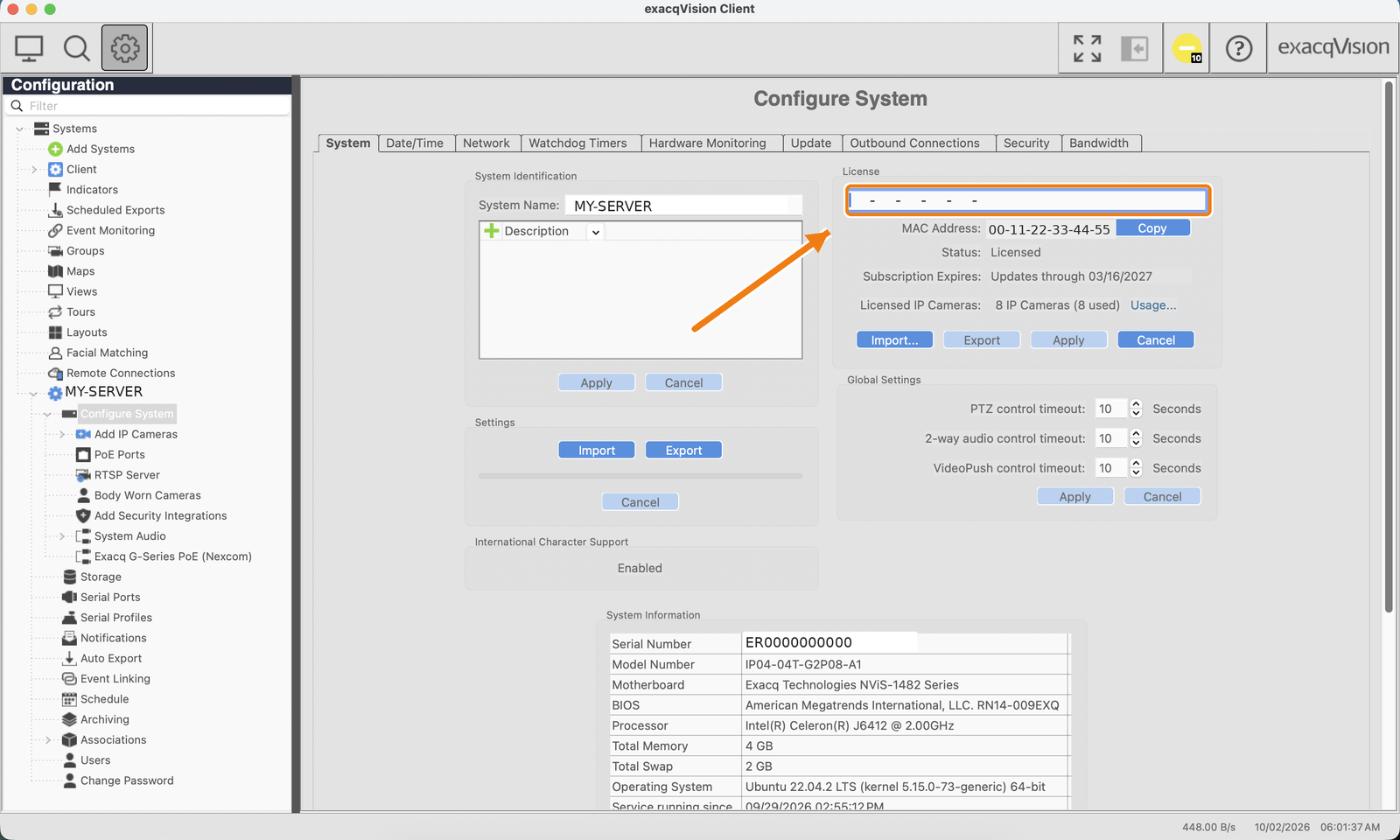
Paste the key
Click into the empty license field at the top of the License box, paste the key exactly as received – dashes included – and press Apply. Edition and camera count change on the spot.
Method 2
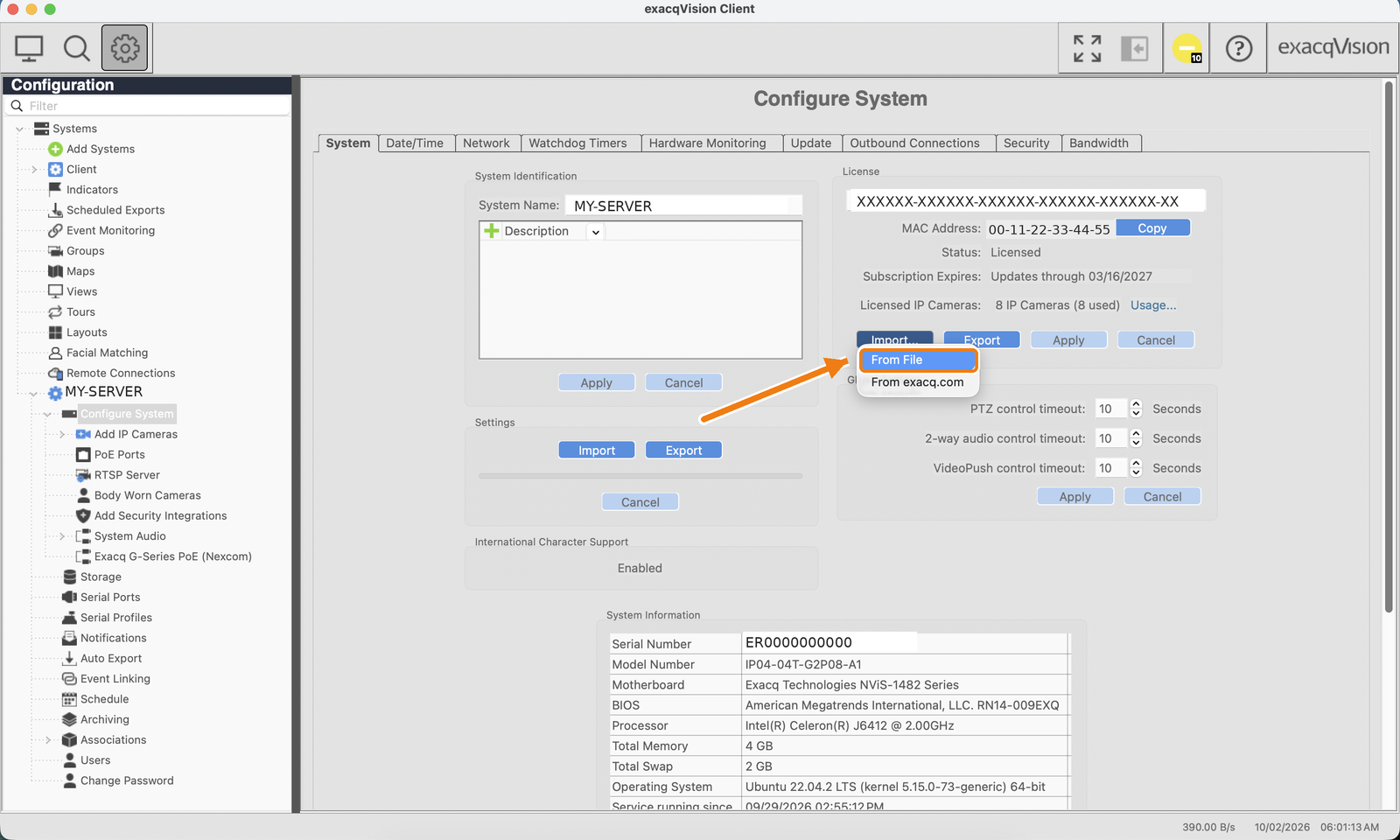
Import the .key file
The .key file (for example 00-11-22-33-44-55.key) is not a document, so your mail program will show an empty preview – that is normal. Save it on the computer with the exacqVision Client, press Import… in the License box, choose From File, pick the file and press Apply.
Method 3
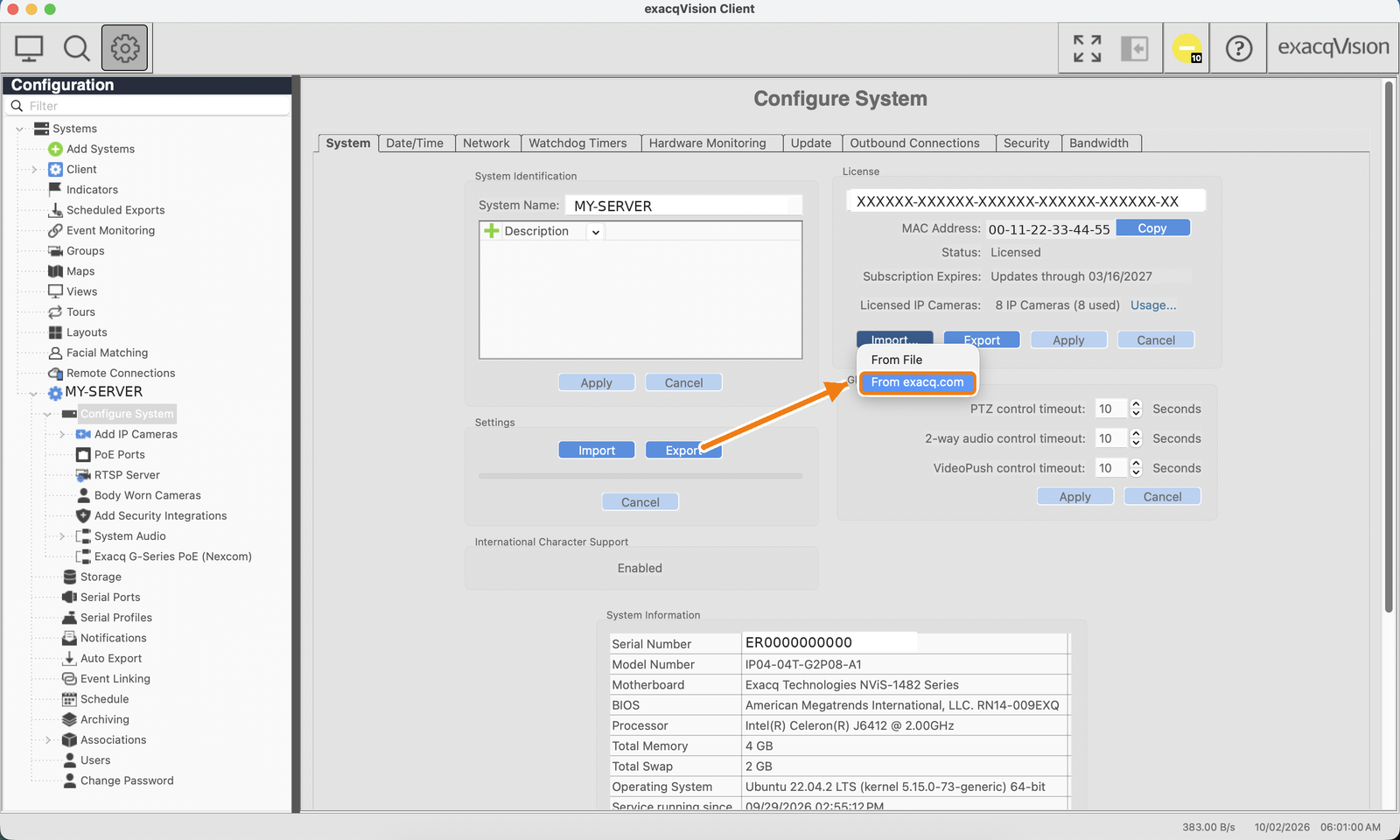
Fetch it online from exacq.com
Server connected to the internet? Then there is nothing to type or copy. Press Import… and choose From exacq.com: the server asks Exacq’s licensing service for the license registered to its MAC address and applies it. The quickest route – and also the way to refresh a license after a renewal or upgrade.
Did it work?
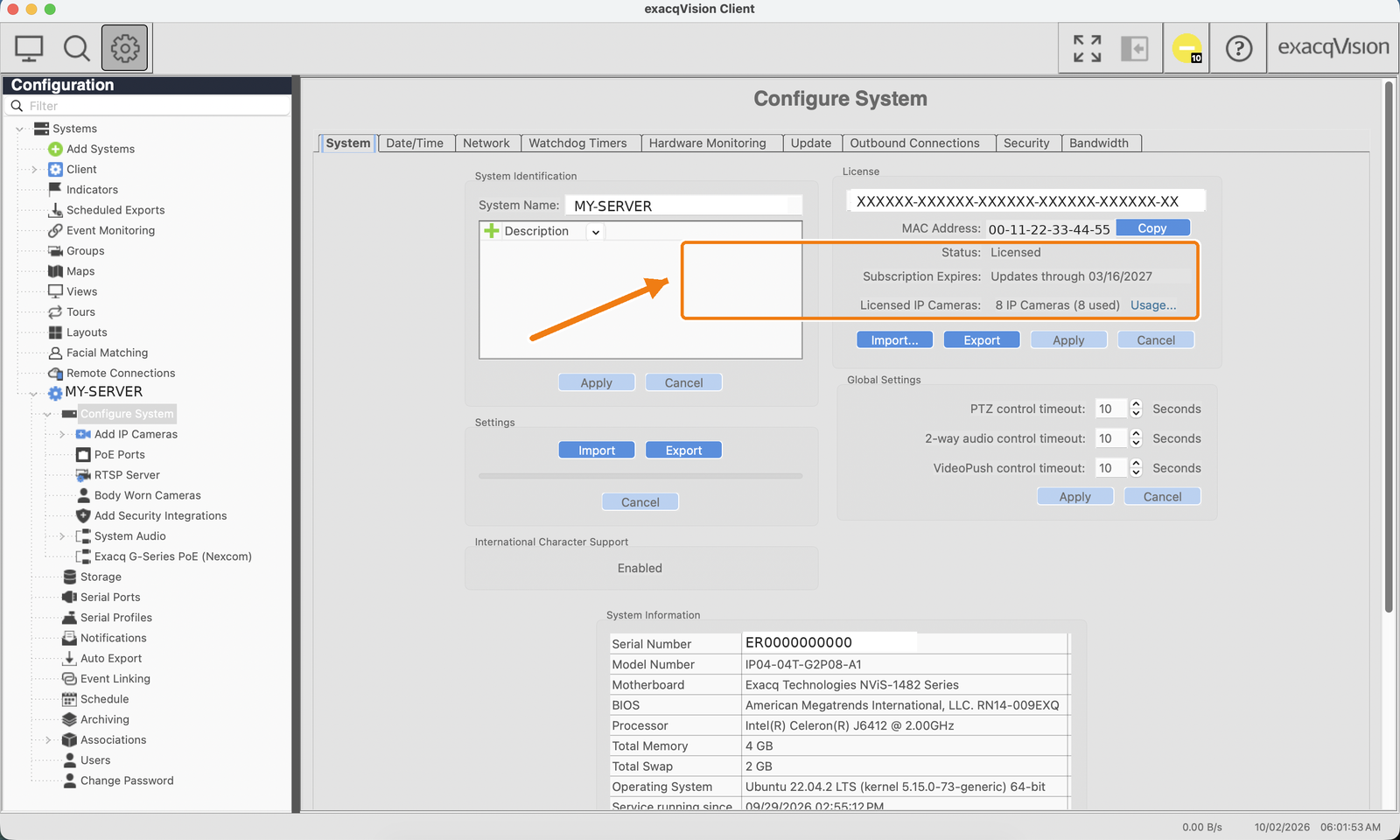
- Stay on the System tab after Apply.
- Licensed Edition should show Professional or Enterprise as ordered.
- The IP Cameras number should equal the channels you now own.
Numbers wrong or key refused? Compare the MAC address in the License box with the one on your order – that is the usual cause. More checks: when a license does not activate.
Next steps
More cameras: EVIP-01 (Professional) or EVENIP-01 (Enterprise) for the MAC shown in the License box (where to find it). Switching to Enterprise: EVIP-EVENIP. Unsure about your edition: code overview.
Quick answers
Do I need to restart the server after activation?
No. The license is applied while the server keeps recording.
Why does the .key file look empty?
It is a license file, not a document – import it in the Client instead of opening it.
Which method should I use?
If the server has internet access, From exacq.com is the quickest. Otherwise paste the key or import the file.
Stuck?
Reply to your order e-mail or write to sales@exacqlicenses.com with the server MAC address – we answer within one business day.